
Instagram setup guide
Connect an Instagram account
Prepare and connect a Facebook Page and Instagram business account to use automated publishing and analytics.
Guide contents
Purpose of this guide: These steps prepare your accounts for the Instagram Graph API. Skip any item you have already completed.
Prepare a Facebook account
Prepare the personal Facebook account that will serve as the foundation for all business settings.
 Open the image to enlarge
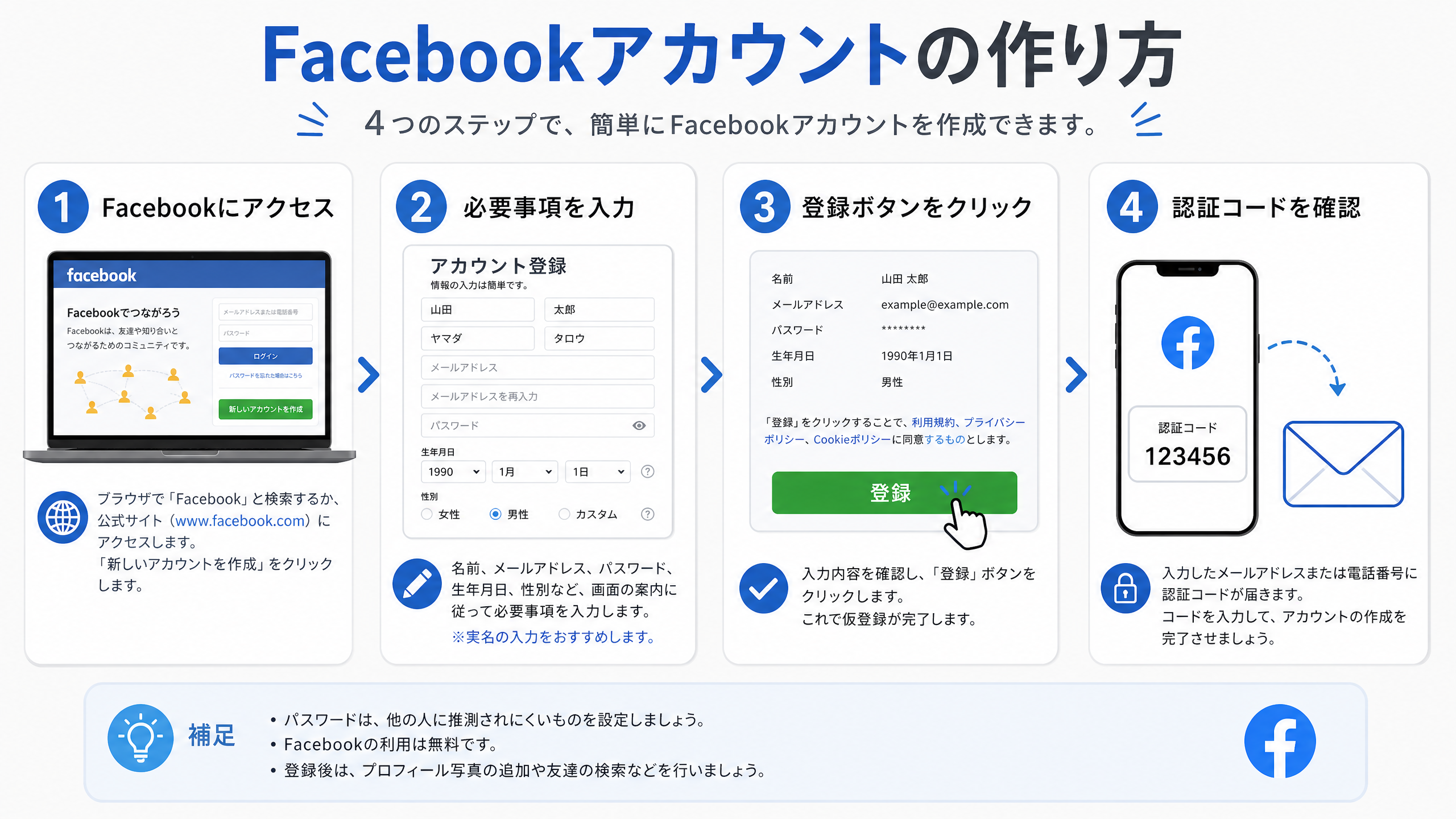
- Visit the official Facebook website at www.facebook.com and select “Create new account.”
- Enter your name, email address or phone number, password, date of birth, and gender. Registration under your real name is recommended.
- Select “Sign Up.” Facebook sends a verification code to the contact method you entered.
- Enter the code to complete account creation.
Create a Facebook Page
Create a Facebook Page for sharing business information. It is required to use the Instagram Graph API.
 Open the image to enlarge
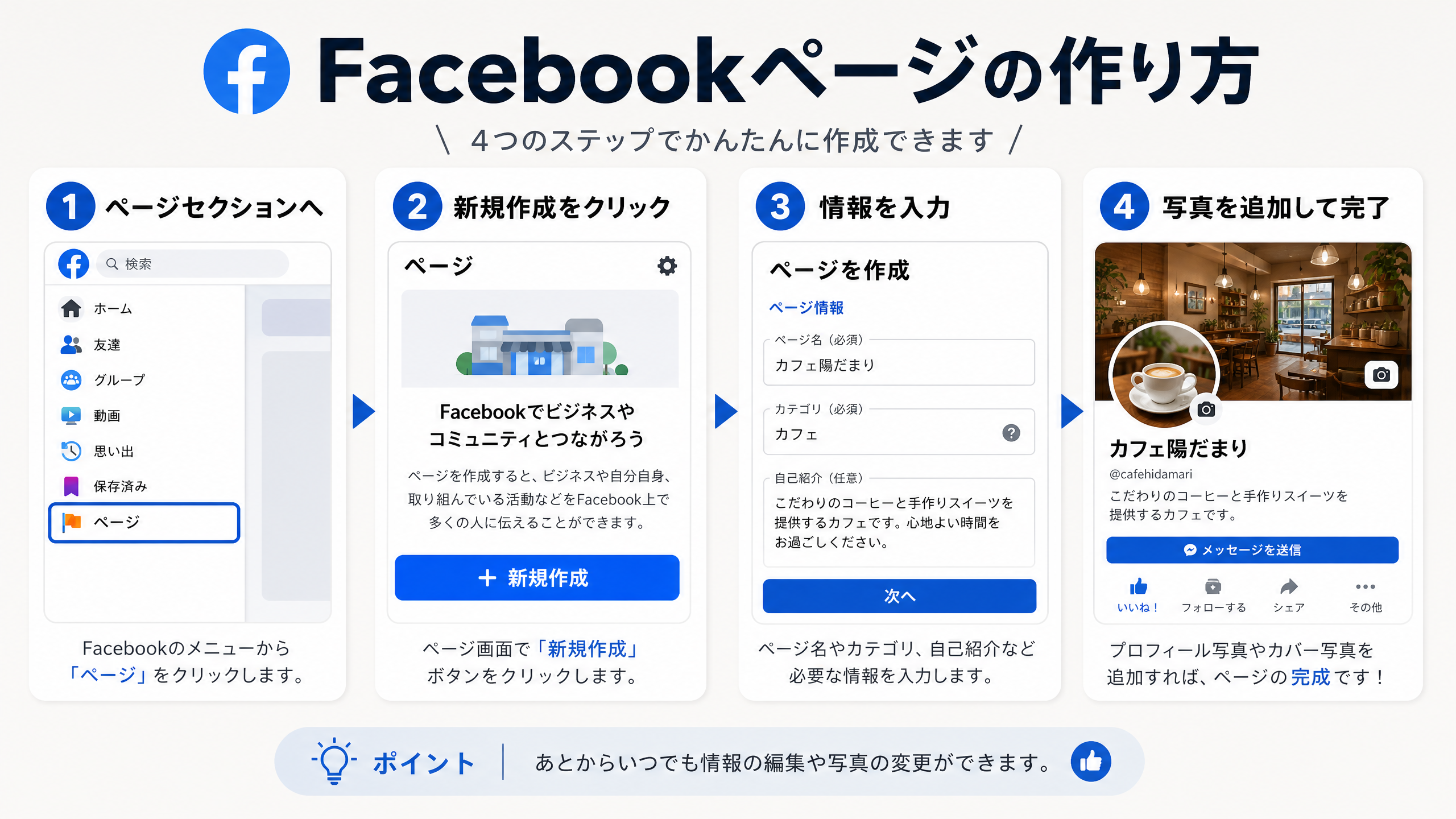
- Select “Pages” from the left menu on the Facebook home screen.
- Select “Create new Page.”
- Enter the Page name, such as your shop name, a category such as Restaurant, and an introduction, then select “Create.”
- Add a profile and cover image, then publish the Page.
Switch Instagram to a business account
Change your personal Instagram account to a professional account for business.
 Open the image to enlarge
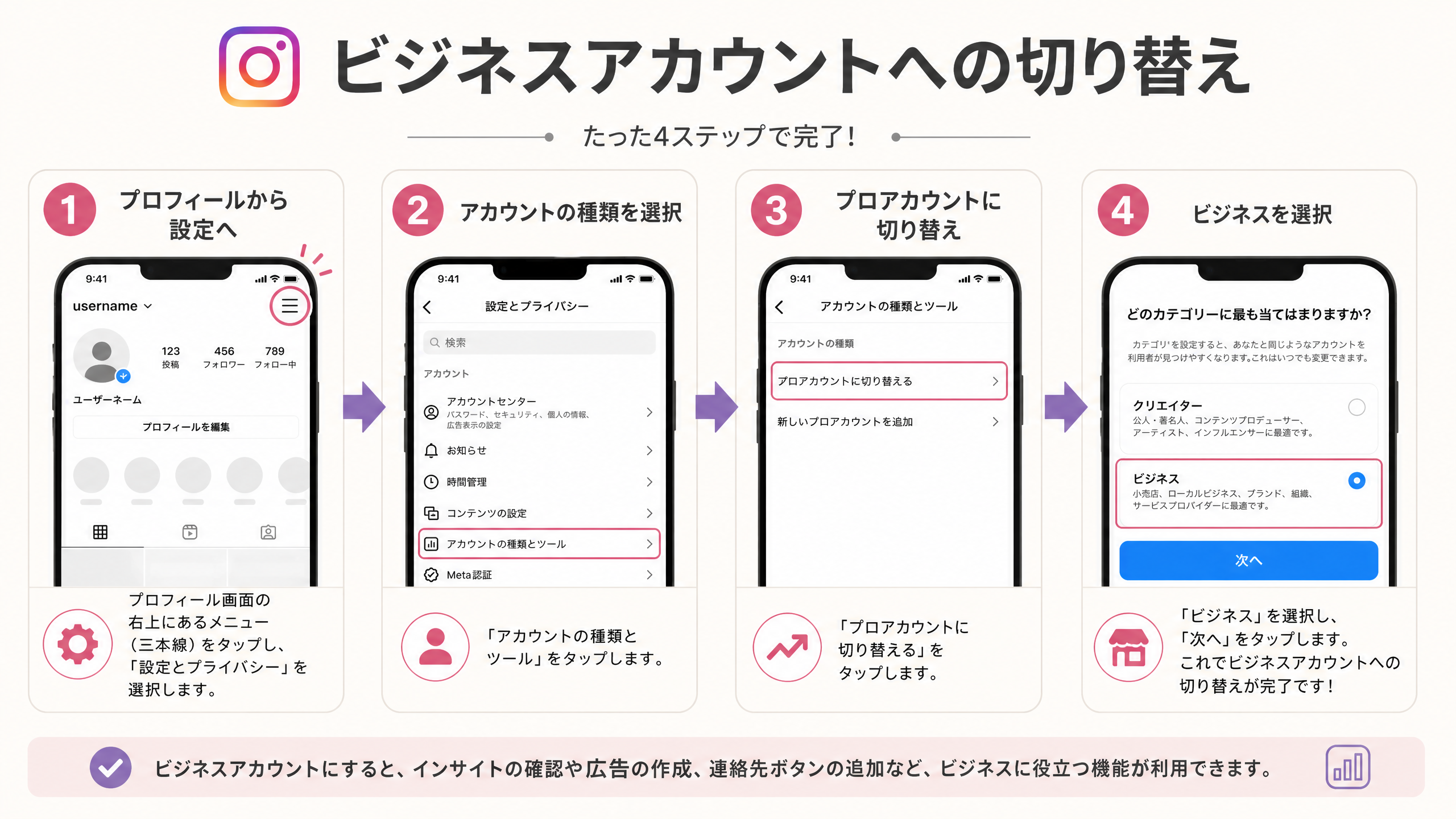
- Open your profile in the Instagram app and select “Settings and privacy” from the menu in the upper right.
- Select “Account type and tools.”
- Select “Switch to professional account.”
- Choose a category, then select “Business” to finish.
Connect the Facebook Page and Instagram
Link the Facebook Page you created to the Instagram business account so the API can access data.
 Open the image to enlarge
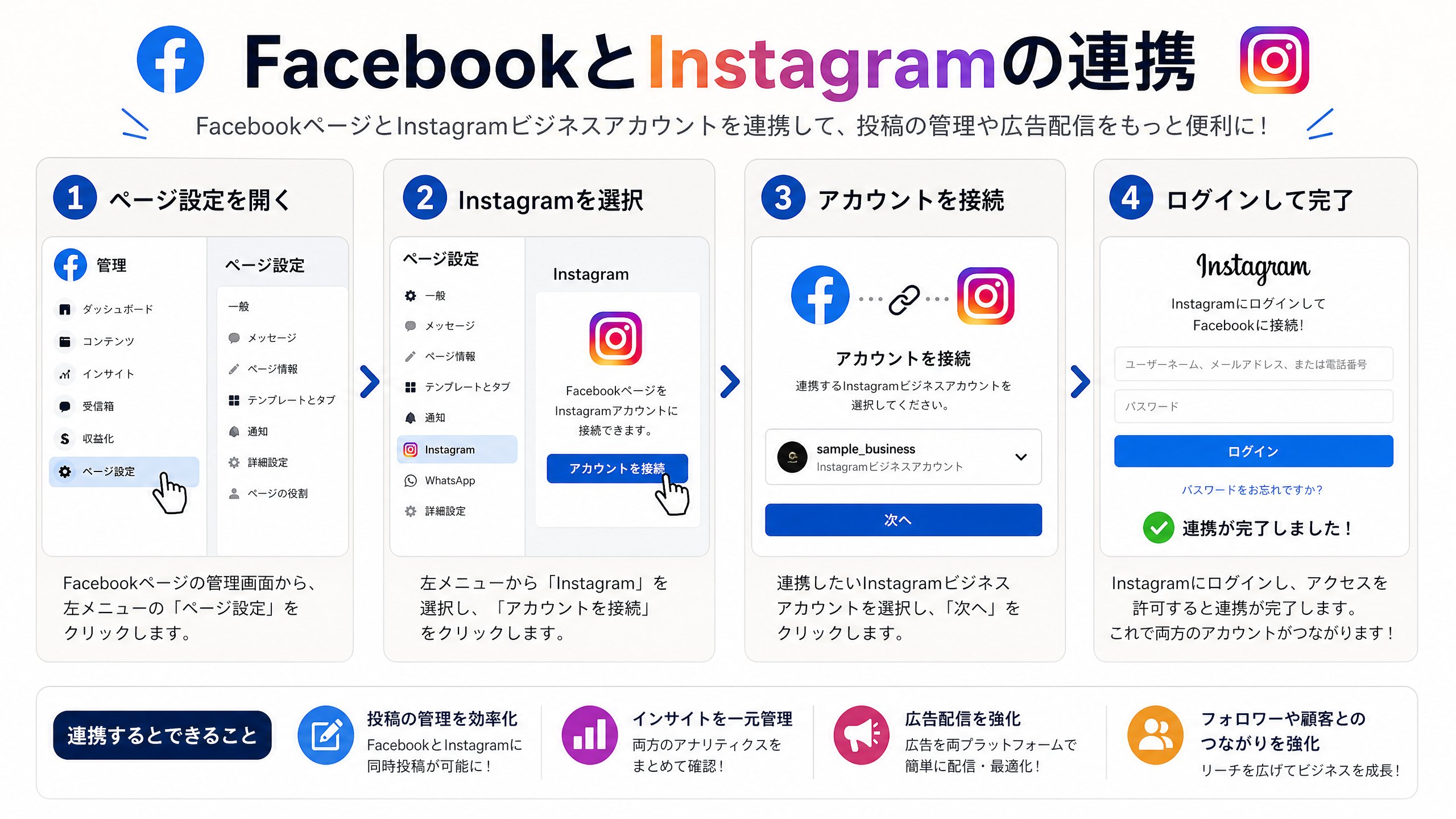
- Open “Settings” from the Facebook Page management screen and select “Linked accounts” or “Instagram” from the left menu.
- Select “Connect account.”
- Enter the login information for the Instagram account you want to connect.
- Review the permissions and complete the connection.
If you get stuck
Service updates may change the settings screens or permission labels. If you cannot continue, attach a screen that shows the situation and email support@tagmore.net.